
Download Mp3 from YouTube
There are times when you don’t need the video — just the audio. Maybe it’s a podcast, a lecture, a beat, or a song you want to listen to offline without wasting data. That’s where downloading MP3 from YouTube becomes useful.
While YouTube doesn’t offer a built-in “download MP3” option, there are safe and simple ways to extract audio legally for personal use, especially for non-copyrighted or royalty-free content. In this guide, I’ll walk you through exact methods, common mistakes to avoid, and tips to get clean, high-quality MP3 files without stress.
What Does “Downloading MP3 From YouTube” Mean?
Downloading MP3 from YouTube simply means extracting the audio track from a YouTube video and saving it as an MP3 file on your phone or computer.
Instead of watching the video online every time, you get:
Offline access
Lower data usage
Easy playback on any music player
Audio-only files without distractions
This is especially helpful for:
Music tracks
Sermons & podcasts
Tutorials & interviews
Instrumentals and beats
Important Note on Copyright (Please Read)
Before downloading anything:
Only download content you own, created, or that is copyright-free
Some creators allow downloads in their descriptions
Downloading copyrighted music without permission may violate YouTube’s terms or local copyright laws
This guide is for educational and personal use.
Method 1: Download MP3 From YouTube Using Online Converters (Easiest)
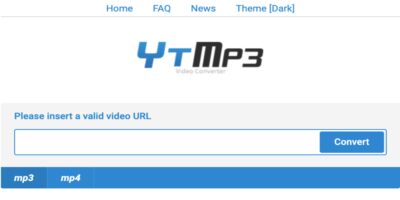
This is the most popular and beginner-friendly method. No apps, no installations.
Step 1: Copy the YouTube Video Link
Open YouTube
Find the video you want
Click Share
Copy the video URL
Step 2: Open a YouTube to MP3 Converter Website
Search Google for:
YouTube to MP3 converter
You’ll find many tools that allow you to paste the link and choose MP3 format.
Step 3: Paste the Link and Select MP3
Paste the copied YouTube link
Choose MP3 as the output format
Select audio quality (128kbps, 192kbps, or 320kbps if available)
Step 4: Convert and Download
Click Convert
Once processing is done, click Download
The MP3 file will save to your device
✔ Works on mobile and desktop
✔ No software required
✖ Ads may appear (avoid fake download buttons)
Method 2: Download MP3 From YouTube Using Desktop Software (Best Quality)
If you download audio often, desktop tools are more reliable and cleaner.
Why Use Software?
Higher audio quality
Faster conversion
No annoying pop-ups
Batch downloads (multiple files at once)
How It Works
Install a trusted YouTube downloader on your PC or Mac
Copy the YouTube video link
Paste it into the software
Select MP3 as output format
Download and save
This method is ideal for:
Long podcasts
Music collections
Regular offline listening
Method 3: Download MP3 From YouTube on Android Phones
Android users have more flexibility.
Option 1: Online Converter (Browser Method)
Use Chrome or Firefox
Follow the same steps as Method 1
MP3 saves to your Downloads folder
Option 2: Dedicated Downloader Apps
Some apps allow direct MP3 extraction:
Paste link
Choose MP3
Download
⚠ Avoid apps that request unnecessary permissions.
Method 4: Download MP3 From YouTube on iPhone (iOS)
Apple restricts direct downloads, but it’s still possible.
Steps:
Copy the YouTube video link
Use an online converter through Safari
Download the MP3 file
Save it to Files app
Open using a music or file manager app
It’s slightly longer, but works without jailbreaking.
Choosing the Best MP3 Quality
When converting, you’ll often see different quality options:
128kbps – Smaller size, decent quality
192kbps – Balanced quality and size
320kbps – Best quality (recommended for music)
For spoken content (sermons, lectures), 128kbps is fine.
For music, aim for 192kbps or higher.
Common Problems and How to Avoid Them
Problem: Fake download buttons
✔ Solution: Click only the button that appears after conversion
Problem: Poor audio quality
✔ Solution: Choose higher bitrate before downloading
Problem: File won’t play
✔ Solution: Re-download and ensure the format is MP3
Problem: Too many ads
✔ Solution: Use desktop software or trusted sites
Is Downloading MP3 From YouTube Safe?
Yes — if you’re careful.
Tips:
Avoid sites asking for login details
Never install unknown browser extensions
Don’t allow notifications from random sites
Use antivirus protection if downloading frequently
Conclusion
Downloading MP3 from YouTube is simple once you know the right steps. Whether you’re saving a podcast for offline listening, extracting a beat, or keeping a lecture for later, the process only takes a few minutes.
Just remember:
Respect copyright rules
Use trusted tools
Choose the right audio quality
Avoid suspicious pop-ups
If done correctly, you’ll have clean, high-quality MP3 files ready to play anytime — even without internet access.